Home / Tutorial / Modeling / 03.Create the Hinge's Inner Cylinder
03.Create a Hinge's Inner Cylinder
We create an inner cylinder for the hinge.
Procedure
-
First, we change the drawing plane.
On the [Model] tab, go to 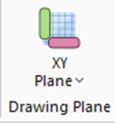 and click ▼ under and click ▼ under  . Click [YZ Plane] . Click [YZ Plane]  on the submenu. on the submenu.
-
See [Drawing Plane] for the details.
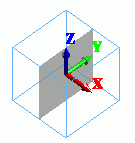
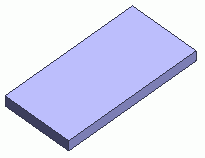
The drawing plane will change as follows.
|
|
|
-
Let's create a cylinder using the menu button.
On the [Model] tab, go to 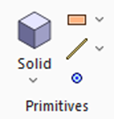 and click ▼ at the bottom of [Solid] and click ▼ at the bottom of [Solid]  . .
Then, click [Cylinder]  on the submenu. on the submenu.
|
|
|
-
Designate the center of the cylinder's end circle.
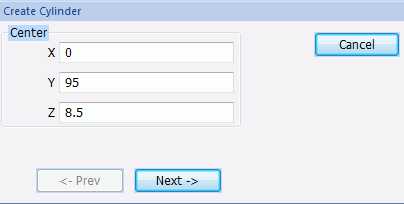
In the parameter input dialog box, enter Center (X: 0, Y: 95, Z: 8.5) and click  . .
|
|
|
-
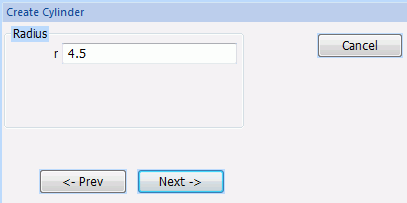
Set the radius.
Enter Radius: 4.5 and click .
|
|
-
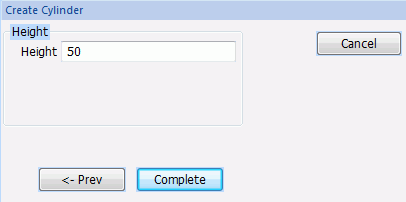
Set the height.
Enter Height: 50 and click  . .
|
|
-
Click  in the parameter input dialog box and exit. in the parameter input dialog box and exit.
|
|
|
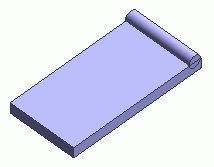
The inner cylinder of the hinge has been created.
|
|



 Prev
Prev