Home / Tutorial / Modeling / 18.Complete the Center Button
18.Complete the Center Button
We complete the center button with a boolean operation (A body is removed from another body)
Procedure
-
Create a cylinder.
On the [Model] tab, go to 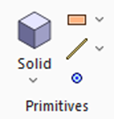 and click ▼ at the bottom of [Solid] and click ▼ at the bottom of [Solid]  . .
Click [Cylinder]  on the submenu. on the submenu.
|
|
-
Designate the center.Click the center point on the .
-
On the [Snap] context tab
 , ,
activate [Center Snap]  , and click and select the inner circle. The coordinates of the center of the circle will be picked up. , and click and select the inner circle. The coordinates of the center of the circle will be picked up.
Snap is explained here
|
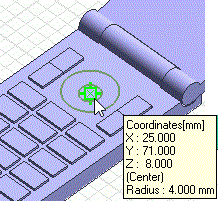
|
-
Enter Radius: 10 and click  . .
|
|
-
In the parameter input dialog box, enter Height: 1 and click  . .
|
|
-
Click  in the parameter input dialog box and exit. in the parameter input dialog box and exit.
The cylinder is now ready.
|
|
-
On the [Model] tab, go to
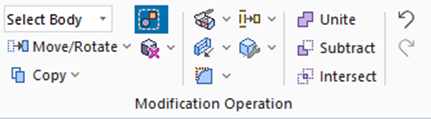
and click [Subtract (Boolean)]  . .
The [Subtract (Boolean)] dialog box will appear.
|
|
-
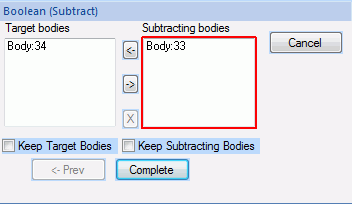
Highlight the cylinder created at 5 and click to select. Also highlight the truncated cone created at the session 17 and click to select.
|
|

|

Click |

|
|
Highlight cylinder |
|
Cylinder selected |
|

|
Ctrl+Click |

|
|
Highlight cone |
|
Cone selected |
|
-
Click  in the [Subtract (Boolean)] dialog box to exit. in the [Subtract (Boolean)] dialog box to exit.
-
Deselect [Keep Target Bodies] and [Keep Subtracting Bodies].
|
|
|
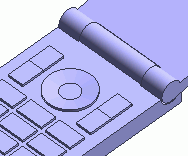
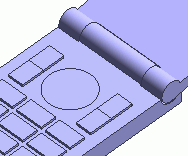
The center button is now ready.
|
|


 Prev
Prev