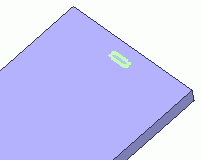
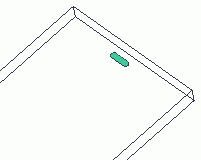
We create a track and stretch it to form an opening for the speaker.
-
We match the drawing plane to the one for the opening.
|
|
-
On the [Model] tab, go to  , and click ▼ at the bottom of , and click ▼ at the bottom of 
and click [User-Specified Plane]  on the submenu. on the submenu.
|
|
-
First, we set the face topology as the object to select.
On the [Model] tab, go to 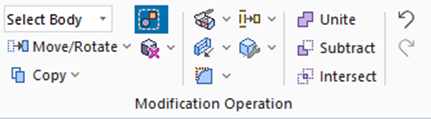
and click Select Face on the drop-down list at  . .
-
How to Switch the Object to Select
-
Concept of Body and Topology
|
|
-
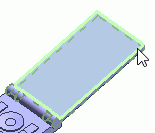
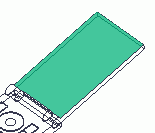
Highlight the face for creating the opening for the speaker and click to select.
|
|
-
Click  in the parameter input dialog box. in the parameter input dialog box.
|
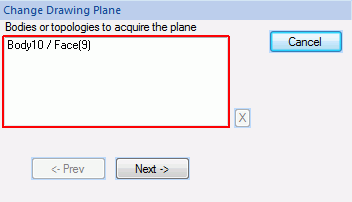
|
-
Enter Subaxis (X: 1, Y: 0, Z: 0) and click  . (At this time, X direction is a sub axis.) . (At this time, X direction is a sub axis.)
The drawing plane has been changed.
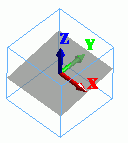
|
|
-
We are ready to create a track.
On the [Model] tab, go to  , and click ▼ at the side of [Sheet Body] , and click ▼ at the side of [Sheet Body]  . .
Then click [Track]  on the submenu. on the submenu.
|
|
|
-
Designate the 1st center.
In the parameter input dialog box, enter Startpoint (X: 22.5, Y: 183, Z: 24.6) and click .
|
|
-
Designate the 2nd center.
In the parameter input dialog box, enter Startpoint (X:27.5, Y:183, Z:24.6) and click .
|
|
-
Set the radius.
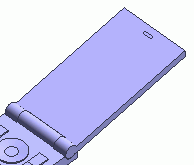
Enter Radius: 1 and click .
|
|
-
Click  in the parameter input dialog box and exit. in the parameter input dialog box and exit.
|
|
-
On the [Model] tab, go to
,
and click Select Body on the drop-down list at .
|
|
-
On the [Model] tab, go to
and click [Extrude]  . .
|
|
-
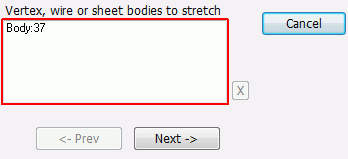
Highlight the track created at 10 and click to select.
|
|
-
Click in the parameter input dialog box.
|
|
-
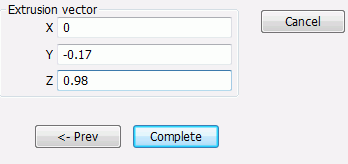
Enter the extrusion vector (X: 0, Y: -0.17, Z: 0.98) and click .
|
|
|
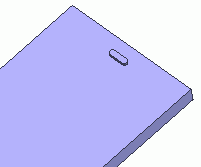
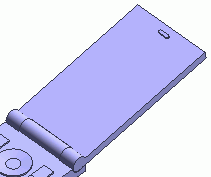
The opening for the speaker is now ready.
|
|



 Prev
Prev