Home / Tutorial / Modeling / 10.Modify the Top Case
10.Modify the Top Case
We modify the top case further with another boolean operation.
We unite the modified top case and the inner cylinders of the hinge.
Procedure
-
On the [Model] tab, go to
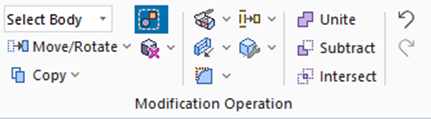 , ,
and click []  . .
|
|
-
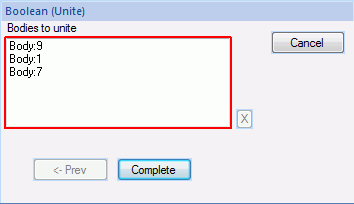
Unite the top case, the hinge's left inner cylinder, and the hinge's right inner cylinders.
Highlight all bodies which you want to unite and click to select.
-
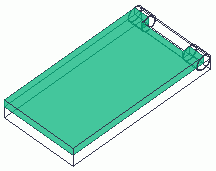
The outer and inner, left and right cylinders are overlapping. Be careful not to select the wrong ones.
|
|
|

Click |
|
|
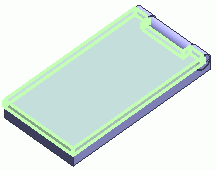
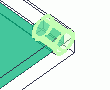
Highlight the top case |
|
Top case selected |
|
|
Ctrl+click |
|
|
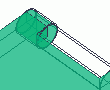
Highlight the hinge's left inner cylinder |
|
Hinge's left inner cylinder selected |
|
|
Ctrl+click |
|
|
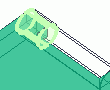
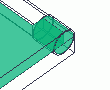
Highlight the hinge's right inner cylinder |
|
Hinge's right inner cylinder selected |
|
-
Click  in the [Unite (Boolean)] dialog box. in the [Unite (Boolean)] dialog box.
|
|
|
The top case has been modified.
|
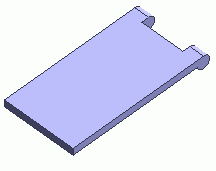
* Only the top case is shown here. |


 Prev
Prev