Home / Tutorial / Modeling / 07.Cut the Hinge's Cylinders
07.Cut the Hinge's Cylinders
|
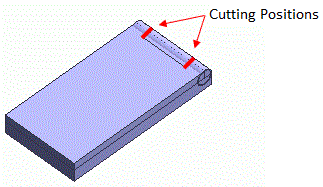
Let's cut the cylinders at two places. (Two points)
|
|
Procedure
|
-
On the [Model] tab, go to
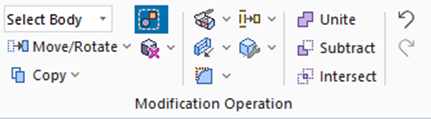
and click []  . .
|
|
-
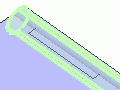
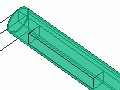
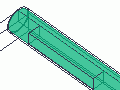
Highlight the hinge's inner cylinder on the and click to select.
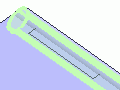
Also highlight the hinge's outer cylinder while pressing <Ctrl> key and click to select. (Selecting order is irrelevant)
-
-
Space Key Method
Rest the mouse pointer on the overlapping area, and press the <Space> key.
Body selection will change. The left-click will fix the selection.
-
List Selection Method
Rest the mouse pointer on the overlapping area, and press the <Tab> key.
The body selection list will appear. Select the body of your interest and left-click to fix the selection.
For more information, see How to Select Bodies and Topologies where you will find "Clicking the Mouse" and "List Selection Method".
-
To zoom in or out for easy viewing, go to the [Viewpoint Operation] tool panel

and click [Zoom]  . Then swing the mouse right or left while pressing the left-click button. . Then swing the mouse right or left while pressing the left-click button.
|
|
|

Click |
|
|
Highlight the hinge's outer cylinder |
|
Hinge's outer cylinder selected |
|
|
Ctrl+click |
|
|
Highlight the hinge's inner cylinder |
|
Hinge's inner cylinder selected |
|
-
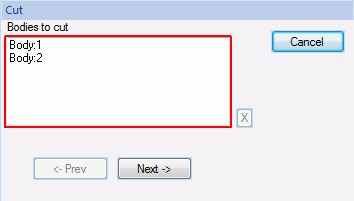
Confirm that the selected bodies are listed in the parameter input dialog box and click  . .
|
|
-
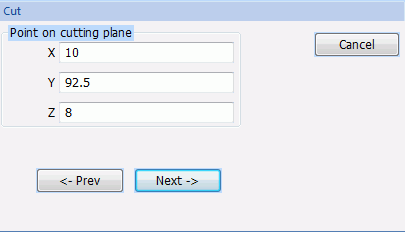
Enter Point on Cutting Plane (X: 10, Y: 92.5, Z: 8) and click .
|
|
-
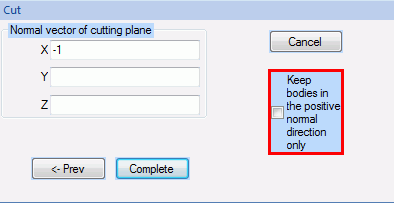
Enter Normal Vector of Cutting Plane (X: -1, Y: 0, Z: 0) and click  . .
|
|
-
We cut the cylinders once more.
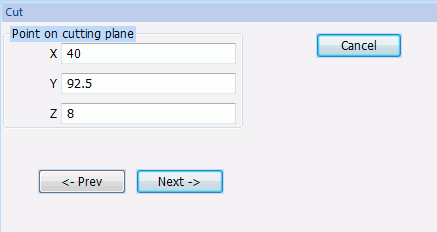
Enter Point on Cutting Plane (X: 40, Y: 92.5, Z: 8) and click .
|
|
-
Enter Normal Vector of Cutting Plane (X: -1, Y: 0, Z: 0) and click .
|
|
-
Click  in the parameter input dialog box and exit. in the parameter input dialog box and exit.
|
|
|
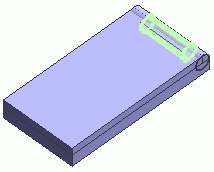
The cylinders were cut at 2 places.
|
|


 Prev
Prev