Home / Tutorial / Modeling / 11.Modify the Bottom Case
11.Modify the Bottom Case
We modify the bottom case with a boolean operation.
A part of the case is deleted by a Boolean Subtract operation.
Procedure
-
On the [Model] tab, go to
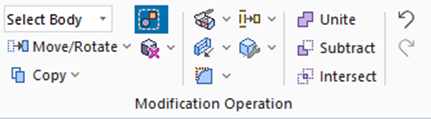
and click [Subtract (Boolean)]  . .
|
|
-
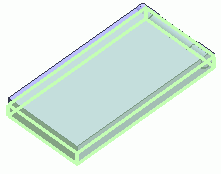
Highlight the bottom case which is the target body and click to select.
|
|
-
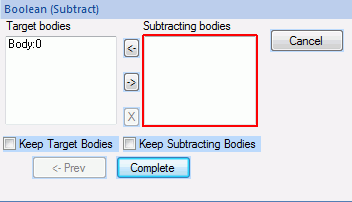
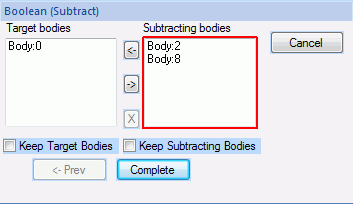
In the [Subtract (Boolean)] dialog box, click and activate the list box for [Subtracting Bodies] .
|
|
-
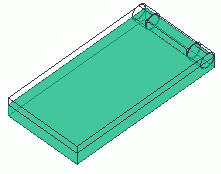
Let's select subtracting bodies.
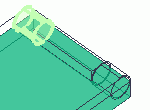
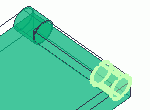
While pressing the <Ctrl> key, select the hinge's left outer cylinder.
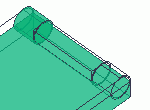
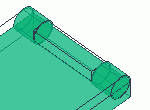
Also, while pressing the <Ctrl> key, select the hinge's right outer cylinder.
|
|
|

Ctrl+click |
|
|
Highlight the hinge's left outer cylinder |
|
Hinge's left outer cylinder selected |
|
|
Ctrl+click |
|
|
Highlight the hinge's right outer cylinder |
|
Hinge's right outer cylinder selected |
|
-
Click  in the [Subtract (Boolean)] dialog box to exit. in the [Subtract (Boolean)] dialog box to exit.
-
Deselect [Keep Target Bodies] and [Keep Subtracting Bodies].
The Subtract (Boolean) dialog box is explained here.
|
|
|
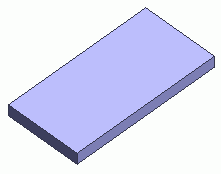
The bottom case has been modified. |
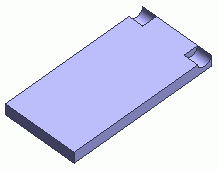
* Only the bottom case is shown here. |


 Prev
Prev